Showing posts with label How to Convert Videos using VLC. Show all posts
Monday, 21 January 2013

How to install Turbo C on Windows 7 64 bit

0 comments

How to install Turbo C on Windows 7 64 bit

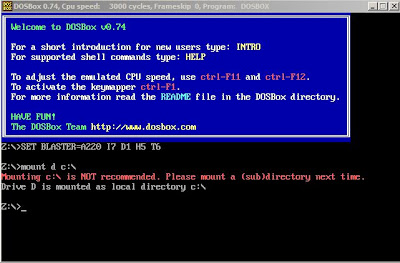
This problem can solved by using a software name called DOSBox. This software will helps you lot of problems of your pc hardware and software utilization. so in order to get things work we need to follow these steps:
                              DosBox for Turbo C++

Installation Process:

                  DosBox Turbo C On windows 7
  • Now you should get a message which says: Drive d is mounted as a local directory c:
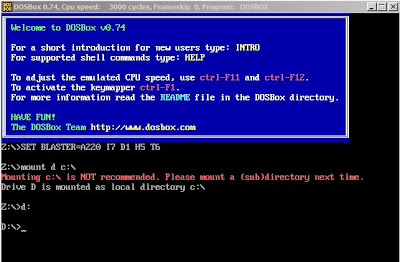
  • Type d: to get into d:
                 DosBox Turbo C On windows 7
  • Next follow the commands below
  • cd tc
                DosBox Turbo C On windows 7
  • cd bin
                DosBox Turbo C On windows 7
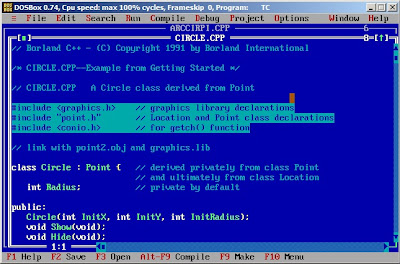
  • and tc or tc.exe(this starts your Turbo C)
                DosBox Turbo C On windows 7
  • (Important steps) In Turbo C Editor, go to options>Directories>changes Directories>Change the source of TC to the source directory
For any more Details  Check out this video httpv://www.youtube.com/watch?v=Fc7D3HLi7Ps

For Full Screen: ALT+Enter.
Continue reading →
Saturday, 19 January 2013

GOM Player v2.1.47.5133 free download and keyboard shortcuts

0 comments

GOM Player v2.1.47.5133 free download and keyboard shortcuts  

GOM player is a popular video player that plays pretty much videos. There are hundreds of free audio and video players available for windows. But of those GOM, VLC, MPC and potplayer stands as the best video players form all. From them GOM Player is probably different as because of its features and options that it offers. Now the company behind it, GOM lab has updated GOM player to the latest version v2.1.47.5133. This version is actually designed for the latest Microsoft operating system(OS).

If you dn't like the default skin of GOM player then you can easily change the skin as the program offers you different skin that are available in official page. You just have to right click on the player and then select skin option. The GOM player can be controlled with keyboard shortcuts like any other player,the key board shortcuts present in GOM player are about aver 100 shortcuts. These shortcuts help you to change and modify all the settings of GOM player

Download latest version of GOM player: http://gom-player.en.malavida.com/download

Recent changes:
  • Changed the background image that is displayed when playing audio files.
  • Added the ability to select 3D Subtitle Mode.
  • Added the ability to change filters for playing TS files.
  • Improved the internal MP4 source filter for MOV playback.
  • Improved the internal MKV source filter.
  • Fixed a bug that caused playback errors with full screen mode when using the "default" skin.
  • Added the ability to select whether or not to play files in a single thread.
  • AB Repeat feature now works properly during DVD playback.
  • Corrected an issue were some OpenDML AVI files over 2GB in size could not be played properly.
  • Links that appear in the text bar of the main window will now open in the user's default browser when clicked (as opposed to IE).
  • The was an issue where subtitles weren't displaying properly on certain MKV files. This problem has been addressed and improved, but may not be 100% corrected for all files.
  • The Gretech Mp4 Source Filter is now used by default when playing MOV files.
  • Updated the GOM Player EULA.
  • Other minor fixes.
GOM Player supports the following formats:
  • GOM, AVI, DivX, ASF, ASX, WM, WMX, WMP, WMV, WVX, MPEG, MPG, MPE, M1V, M2V, DAT, VOB, MP4, 3GP, K3G, LMP4, SKM, DMSKM, RMVB, RM, OGM, MKV, IFO, DMB, OGG, AC3, XviD, H.263.

Funtion keys

 [F1] : Display the About GOM Player window
 [F2] : Open File
 [F3] : Open Subtitles
 [F4] : Stop and close video
 [F5] : Open the Prefences window
 [F7] : Open/Close Control Panel window
 [F8] : Open/Close Playlist window
 [F12]: Open DVD
 Ctrl + [F5] : Set Default Aspect Ratio
 Ctrl + [F6] : Default Aspect Ratio
 Ctrl + [F7] : 4:3 Aspect Ratio
 Ctrl + [F8] : 16:9 Aspect Ratio
 Ctrl + [F9] : 1.85:1 Aspect Ratio
 Ctrl + [F10]: 2.35:1 Aspect Ratio
 Ctrl + [F11]: User-Defined Aspect Ratio
 Alt  + [F4] : Quit GOM Player
 Alt  + [F10]: Open Skin Manager
 Alt  + [F11]: Previous color-scheme
 Alt  + [F12]: Next color-scheme

Open Menu shortcuts

Open the Easy Browser: Ctrl + I
 Open File            : Ctrl + O (or [F2])
 Open URL             : Ctrl + U
 Open Folder          : Ctrl + D
 Open DVD             : [F12]
 Open Subtitle File   : Alt + O (or [F3])

AB repeat

Start AB Repeat : [
 End AB Repeat   : ]
 Undo AB Repeat  : \ (Reverse Slash)

Subtitle Control

Select Subtitle Language: S
 0.5 sec Faster : > or .
 0.5 sec Slower : < or ,
 Default Sync   : /
 Save Current Sync  : Alt + S
 Subtitle Explorer  : Alt + E
 Show/Hide Subtitle : Alt + H
 Adjust Subtitle Position : Alt + Arrow Keys
 Default Subtitle Position: Alt + Home
 Change Subtitle Thickness: Alt + B
 Increase Subtitle Size : Alt + Page Up
 Decrease Subtitle Size : Alt + Page Down

Video Color and Effect Controls

Increase Hue : P
 Decrease Hue : O
 Increase Brightness : R
 Decrease Brightness : E
 Increase Saturation : I
 Decrease Saturation : U
 Increase Contrast : Y
 Decrease Contrast : T
 Increase Contrast and Brightness: W
 Reset Video Color Settings: Q
 Flip Input Vertically : Ctrl + Y
 Flip Output Vertically: Ctrl + V
 Toggle Smoothen Effect: Control + L
 Toggle Sharpen Effect : Ctrl + M
 Toggle Noise: Ctrl + N

Recent posts:

Continue reading →
Tuesday, 1 January 2013

Vlc Media Keyboard Shortcut

0 comments
 Vlc Media Keyboard Shortcut
 VLC is a very versatile media player that can play anything you throw on it, but very so often you really won't be able to figure out the controls. if you didn't know, you can get a lot of things done on VLC Player just by using keyboard shortcuts.                
                                                   

Here is the complete list of keyboard shortcuts (in the best possible order),
  • a – Cycle source aspect ratio
  • b - Cycle audio track
  • c – Cycle video crop
  • d - Cycle de-interlace modes
  • e - Next frame
  • f – Switch to full screen
  • g – Subtitle delay down of -50ms
  • h – Subtitle delay up of +50ms
  • i - Show interface
  • j - Audio delay down of -50ms
  • k – Audio delay up of +50ms
  • l - Normal/repeat/loop
  • m – Mute/un-mute
  • n – Play next media from the playlist
  • o - Toggle auto scaling
  • p – Play the Previous media in the playlist
  • r - Random
  • s – Stop playback
  • t – Position
  • V – Enable subtitles (if available)
  • w - Toggle wallpaper mode in video output
  • z – Zoom
  • + – Play faster
  • - – Play slower
  • = - Normal rate
  • ] - Play faster (fine)
  • [ - Play slower (fine)
  • Ctrl + g – Extend GUI
  • Ctrl + m – Go to DVD Menu
  • Ctrl + p – Playlist
  • Ctrl + q - Quit
  • Ctrl + r – Record
  • Ctrl + Arrow Up - Increase volume
  • Ctrl + Arrow Down – Decrease the volume
  • Ctrl + Left/Right Arrow – Forward or Rewind the video
  • Ctrl + Left - Medium backwards jump
  • Ctrl + Right - Medium forward jump
  • Ctrl + Alt + Left - Long backwards jump
  • Ctrl + Alt + Right - Long forward jump
  • Ctrl + Alt + m - Do not display OSD menu on video output
  • Ctrl + 1 - 1:4 Quarter screen size
  • Ctrl + 2 - 1:2 Half screen size
  • Ctrl + 3 - 1:1 Original screen size
  • Ctrl + 4 - 2:1 Double screen size
  • Ctrl + F1 - Set playlist bookmark 1
  • Ctrl + F2 - Set playlist bookmark 2
  • Ctrl + F3 - Set playlist bookmark 3
  • Ctrl + F4 - Set playlist bookmark 4
  • Ctrl + F5 - Set playlist bookmark 5
  • Ctrl + F6 - Set playlist bookmark 6
  • Ctrl + F7 - Set playlist bookmark 7
  • Ctrl + F8 - Set playlist bookmark 8
  • Ctrl + F9 - Set playlist bookmark 9
  • Ctrl + F10 - Set playlist bookmark 10
  • Shift + Left - Very short backwards jump
  • Shift + Right - Very short forward jump
  • Shift + b - Select next DVD title
  • Shift + d - Dump
  • Shift + g - Go back in browsing history
  • Shift + h - Go forward in browsing history
  • Shift + i - Show interface
  • Shift + m - Go to DVD menu
  • Shift + n - Select next DVD chapter
  • Shift + o - Select previous DVD title
  • Shift + p - Select previous DVD chapter
  • Shift + r - Record
  • Shift + s - Take video snapshot
  • Alt + o - Increase scale factor
  • Alt + Shift + o - Decrease scale factor
  • Alt + Left - Short backwards jump
  • Alt + Right - Short forward jump
  • Enter - Activate
  • Esc - Leave fullscreen
  • Shift + z - Un-zoom
  • Space - Play/Pause
  • Arrow Up - Navigate up
  • Arrow Down - Navigate down
  • Arrow Left - Navigate left
  • Arrow Right - Navigate right
  • Alt + c - Crop one pixel from bottom of video
  • Alt + d - Crop one pixel from left of video
  • Alt + f - Crop one pixel from right of video
  • Alt + r - Crop one pixel from top of video
  • Alt + Shift + c - Uncrop one pixel from bottom of video
  • Alt + Shift + d - Uncrop one pixel from left of video
  • Alt + Shift + f - Uncrop one pixel from right of video
  • Alt + Shift + r - Uncrop one pixel from top of video
  • Alt + Shift + Arrow Right - Highlight widget on the right
  • Alt + Shift + Arrow Left - Highlight widget on the left
  • Alt + Shift + Arrow Up - Highlight widget on top
  • Alt + Shift + Arrow Down - Highlight widget below
  • Alt + Shift + Enter - Select current widget
  • F1 - Play playlist bookmark 1
  • F2 - Play playlist bookmark 2
  • F3 - Play playlist bookmark 3
  • F4 - Play playlist bookmark 4
  • F5 - Play playlist bookmark 5
  • F6 - Play playlist bookmark 6
  • F7 - Play playlist bookmark 7
  • F8 - Play playlist bookmark 8
  • F9 - Play playlist bookmark 9
  • F10 - Play playlist bookmark 10

Some handy keyboard shortcuts are as follows
:
VLC Media Player for Mac users can find most of the keyboard shortcuts by taking a look at the menus. Additional hotkeys are defined in the section “Hotkeys” of your VLC preferences.
  • Press the spacebar to start/pause the video.
  • When playing video, holding down the Apple key and pressing the F key enters and exits full screen. When in ful lscreen you can also use the escape key to exit the full screen state.
  • When playing video, holding the Apple and Shift keys and pressing the left/right arrow keys, jumps the video backward/forward about a minute.
  • When playing video, holding the Apple and Ctrlkey and pressing the left/right arrow keys, jumps the video backward/forward about ten seconds.
  • When you are watching a DVD and the video window is the front-most window you can use the arrow keys and the enter key to navigate the DVD menus.
  • F – Decrease Audio Delay in milliseconds
  • G – Increase Audio Delay in milliseconds
  • H – Decrease Subtitle Delay
  • J – Increase Subtitle Delay
Continue reading →