Showing posts with label Tricks. Show all posts
Monday, 11 March 2013

Top 10 Tricks for VLC Everyone Should Know

1 comments
VLC Player is a free multimedia player  Used by huge number of people. VLC can understands many audio and video formats. When you ask why people love VLC, answer is it can play back all of the popular media formats both video and audio.

Usage of VLC is easy,Apart from being a media player VLC can also act as a streaming media server,a screen capture tool.

If you're one of the people looking for the tips and tricks of VLC, this article gives a list of some useful tricks.


Record videos from webcam:
If you like to record your own videos for upload on YouTube or to send video message to other, VLC is very useful to take your videos.

 Process to Record

  • Go to Media
  • Open Capture Device  
  • Start Recording.


Play Puzzle Game on VLC Player
In this Option you can see that play back of video could be broken down into multiple of parts, which looks like Puzzle Game

Process to Do

  • Go to Tools
  • Effective and Filters
  • Video Effects 
  • Geometry
  • Enable Puzzle Game( now select number of columns and rows on screen)


VLC video puzzle 10 Little Known Tricks about VLC Media Player to Squeeze Most out of its Versatility

Video Converter
VLC can convert any video to needed format without use of any external Software.

Process to Convert

  •  Media 
  • Convert/Save
  • Add File
  • Convert
  • Select output format and go to start processing video


vlc video converter 10 Little Known Tricks about VLC Media Player to Squeeze Most out of its Versatility


Desktop Effect
It's just for Fun not so useful, you can see Desktop screen goes upto infinity.

Process to Do

  • Media
  • Open network stream
  • Type Screen:// and hit play button


inception vlc 10 Little Known Tricks about VLC Media Player to Squeeze Most out of its Versatility


Video streaming
You can play online media directly by Using VLC.
Just you need Video URL that what you want to play on VLC

Process to Go

  • Media
  • Open Network Stream
  • Enter URL and Play(you can use YouTube URL or even Dailymotion and other popular online video librarie)


VLC Essential Shortcuts

  • F=Full screen
  • Space=play or pause
  • +=play speed
  • -=play slower
  • m=Mute
  • Ctrl+q=Quit
  • Ctrl+up or Mouse wheel up=Volume up
  • Ctrl+down or Mouse wheel down=volume down
  • Shift+Right arrow key=Skip forward
  • Shift+left arrow key=Skip backward


Record Online Video directly
If you want record online streaming videos you can use VLC

Process to Go

  • Go to Tools
  • Codec Information
  • You will see the record Option 


Make Attractive Sketch
VLC Media Player has Gradient Effect to show the videos on sketch drawn by an Artist look

Process to GO
  • Tools
  • Effects and filters
  • Video Effects
  • Image Modification
  • Check on Gradient


vlc sketch mode 10 Little Known Tricks about VLC Media Player to Squeeze Most out of its Versatility


Screenshots
This is a simple trick everyone know that, VLC screenshot. you can take screenshot of videos on vlc while streaming.

Process to Go

  • Right click on the screen
  • Go to video
  • Navigate to screenshot
  • It will save on your desktop


vlc video capture screenshot 10 Little Known Tricks about VLC Media Player to Squeeze Most out of its Versatility


Jump to specific time in the video
You can jump in ti certain time in video where you want.

Process to Go

  • Use Ctrl+T
  • Now Enter the Time what you want to jump in to

You may like:
How to secure Email by using password protection
How to find you lost windows phone?
control your mouse pointer using head and eyes movements
Free Download YouTube videos on Android phone
Check your Antivirus works or not in computer
History behind Facebook

"Please comments if you like this post"


Continue reading →
Saturday, 2 March 2013

Send Free SMS through your Gmail!

0 comments
                        
Gmail is one of the best mailing service today, it gives many useful facilities for users. Gmail now allowing Indian users to send free SMS to mobile phones,provided you need to enter his phone number. These messaging is available across a lot more countries, including Asian countries such as Afghanistan, India, pakistan etc. You can send free texts to almost all networks in India.

                                       mobile operators supported thumb | Now, Send Free SMS through your Gmail!


Google SMS Credit?
This is a easy way to use the service,Initially you are given Fifty Credits, means you can send 50 messages. For every message usage you'll see one credit deducted.  When you receive an replay SMS, your credit increased by five up to a maximum 50. No need to feel bad if your credits becomes zero, it will back up to one credit after  24 hours.

A smart idea to increase credits send a text to your own mobile phone, and then replay to it any number of times to get back your credits. This is not a illegal, it is explained my Google

Stop receiving SMS from Google Chat
If your want to stop recieving SMS from Google Chat. You will have to send "STOP" to this number +918082801060. Then you will stop getting messages on chat.

How to send free SMS in gmail?
Login to your Gmail account
Then go to Settings
Click on Labs tab
Enable SMS in chat
Click on save changes

                 How to Send Free SMS Using Gmail

Enter your friend's mobile number in the chat box and go to send option


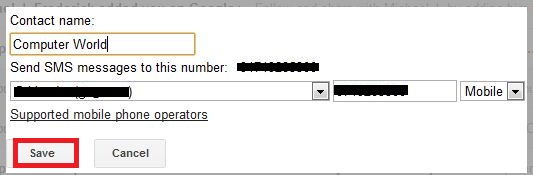
After that Enter you friend name and Click on Save

How to Send Free SMS Using Gmail

This time you'll get open window with particular phone number
Now Enter message what you want and press Enter
                                         How to Send Free SMS Using Gmail
Simple!! Now your message will send to particular phone number through SMS, if person replay for the SMS it will show you in chat box window.

Your conversion will be saved automatically in your chat history.

Continue reading →
Friday, 1 March 2013

How to secure Email by using password protection

0 comments
In this internet era Email has become one of the important media to exchange our ideas, messages etc. If we want to send some confidential information to some others such as Bank details, Credit card numbers we use Email services. But it may not secure sending Email without any password protection, Computer criminals are always try to hack passwords of users Email account. Insecure situation gives a big trouble to users.

                        How to Send Password Protected E-mails
Features of  E-mail are developing day by day,we can send email with password protection by using "Lockbin".

What is Lockbin?
It is a web app for sending private Email and files. It's free app, people can send confidential details like credit card numbers or information.

How does it work?
No need of registration is required to use Lockbin. Lockbin provides password protection and AES-256 bit encryption to emails.

Process to send password protected Emails:
Click here to go Lockbin online service
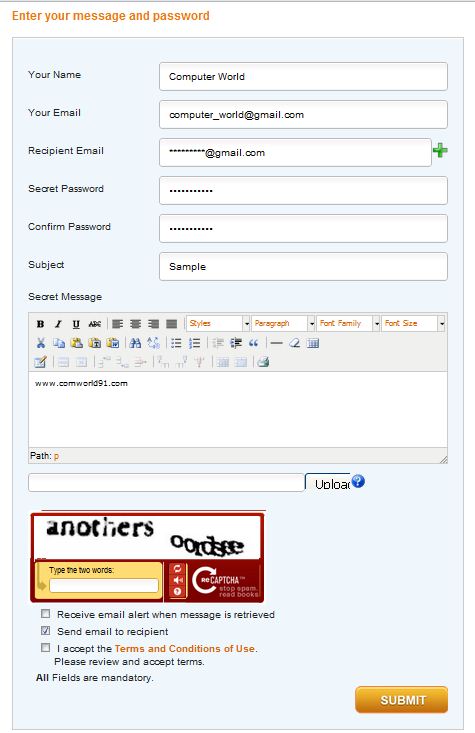
Fill the form with your desired password
In the text field you can write your confidential details
How to Send Password Protected E-mails

After click on Submit button
Now password protection mail will be sent to the person, only the person will get the link to read your password protected mail.
How to Send Password Protected E-mails

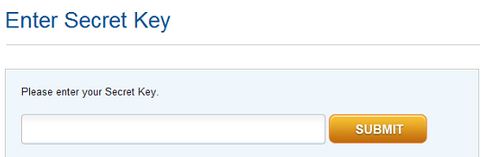
When person click that link,it will ask him/her to Enter the password. Don't forget to send the password to that person by using mobile sms or normal mail.

You have to remember one thing Password protection mail stores in Lockbin server itself.

Continue reading →
Monday, 25 February 2013

Control your mouse using head and eye movements

0 comments
 Technology keeps on changing day by day, people with disabilities often find it hard to use the PC. Two students from Israiel developed one software to use mouse pointer with head movements.  yaron Gavish and Yariv Trabelsi two students from jerusalem, decided to develop the software for disabled persons to use computer easily. The new software allows the users not only the movement of mouse pointer relative to the movement of head,but you can click the object by focusing on the object. The method of using these app is not so easy for normal mouse users, but very helpful to disabled persons.


The software is being to sold at very low price($20) for controlling your personal computer, which requries no special hardware, is based on the tracking of objects.

Control the movement of mouse with your head movement.
Stare to click
Highly configurable( movement speed)
Minimize to tray
Easy user switching
Speech recognition commands(for drag, drop,scroll)


Requirements for Motion Mouse

A fast computer
Windows operating system
A cemra which can send live video streams to your PC at least 15 frames per second

Download here:

 http://www.softpedia.com/get/Others/Miscellaneous/EyeTwig-Tracker-Pro.shtml

http://www.eyetwig.com/download/TrackerTrial1.02setup.exe


You might also like:
Free download of youtube videos on your Android device
Burn CD/DVD without using any software in windows 7
Free download Google chrome portable version 24.0.1
Clean your RAM without any software
Check your Anti virus working or not?
Password protection to USB Drive without any software
Free download Skype for both Windows and Mac
How to check your pen drive fake are original
History behind Facebook
Free download of CCleaner version 3.27
Tall Tweets version 2.0
Nokia Lumia 910 price and specification
How to play all type of videos and audios in windows media player


Continue reading →
Saturday, 16 February 2013

Burn CD/DVD with out using any software in Windows 7 ,Windows XP and Windows vista

0 comments
In previous days PC users best storage data storage tools are CDs and DVDs. But these days technology has changed a lot, we are using more effective tools like pen drives, hard disks and memory based cards to transfer the data between PCs and to store data.

Some times still we  need to using CDs and DVDs to transfer data between computers. Most of the people use software like  Nero and some other else to burn CDs and DVDs. You don't have any software to burn CDs and DVds what will you do  time is sudden. Here is a simply trick to burn CD/DVD without using any software. These trickis for windows 7 and  windows vista users.

Insert empty CD/DVD
Now open the CD/DVD Drive in my computer
Just drag and drop all the files which you want to burn.
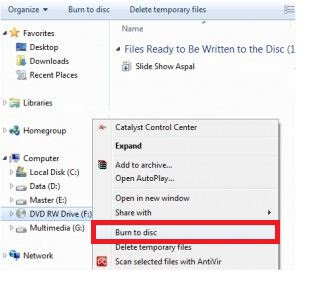
Right click on your CD/DVD  and click on burn to disk

                How to Burn CD/DVD Without Any Software

Now burning will start automatically.
If you want to give any name to CD/DVD, rename it before burning.

For Windows XP users:

Insert empty CD/DVD in to your pc.
Now open CD/DVD Drive in my computers.
Just drag and Drop all files what you want to burn.
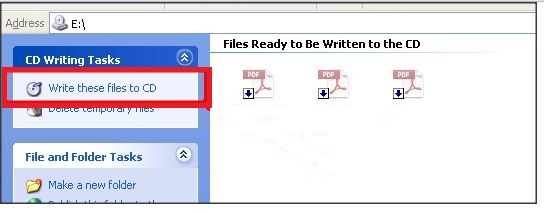
Now click write these files to CD

How to Burn CD/DVD Without Any Software

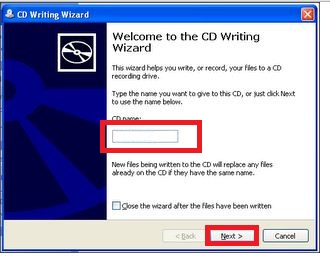
After that,CD writing Wizard windows will appear
Give a name to CD/DVD and click Next.

                      How to Burn CD/DVD Without Any Software
Now your CD/DVD will burn without any software.

You might like:

Continue reading →
Thursday, 14 February 2013

Clean your RAM without any software

0 comments
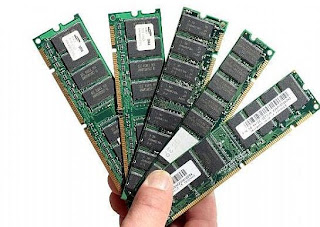
RAM is the one of the main component of the computer that is responsible for the process of your Operating system. We know all the current running process are stored in the RAM, it makes the system slow. Instead of using any software to erase data present in the RAM. Here is a trick to clean your and increase your system speed.

                               Clean your RAM without any software

Process to follow:
-Open Notepad
-Type FreeMem=Space(64000000)
-Save it as "CleanRAM.vbs" on desktop

Note: Type the name of file along with inverted commas

Now Run the file and the RAM may be free.

You can edit the code to your suitable RAM

For Example:

 FreeMem=Space(1280000000)

FreeMem=Space(2560000000)

FreeMem=Space(5120000000)

FreeMem=Space(10240000000)


You May like:
Continue reading →
Tuesday, 12 February 2013

Check your Antivirus works or not in computer

0 comments
Using of Computers in these days are increased rapidly. Maintaining the Computer in safe mode is bit difficult like Virus attack.   To protect your computer from viruses you need to install Antivirus. Most of the time we just install the Anti viruses and relax that antiviruses is working fine and one fine morning you will get one notification like anti virus program is not working. Is your Anti virus working? How effectively  does it work for your security? Here is a small test to find it out. In fact this trick is really amazing and surprising.

                               Check whether the Anti-Virus works or not in Computer
Process to check your Antivirus is working:
-Click on start button
-Open Notepad
-Now copy this code in the text file
-X5O!P%@AP[4\PZX54(P^)7CC)7}$EICAR-STANDARD-ANTIVIRUS-TEST-FILE!$H+H*
-Then Save it with the name fakevirus.exe

If your Antivirus works properly,the file you saved will be identified as virus and it will be deleted by your working Antivirus. If your antivirus doesn't properly,the file you saved will not be identified as virus. Now your file get deleted you can know that your antivirus works without any trouble.

You might also like:
Continue reading →

Password protection to USB Drive without any software

0 comments
Some people don't like to show there stuff inside the USB. Now i am going to show you a simple trick to lock your USB drive without using any 3rd party software. If we are not in secure state, chance to theft our personal data by someone. If your using Windows you don't need to purchase any software.So let's see how to set a password protection to your USB without using any software.
                         
                                     
Process:

Insert your USB drive to computer
Go to start menu
In search box, type Bitlocker drive encryption
Go to that application


Then look for your USB drive and click on turn on Bitlocker

Password Protection to USB Drive without using Software

Windows ask you to set password
set a strong password
click on Next

Password Protection to USB Drive without using Software

If you want save the password in a safe place
Click on Next

Password Protection to USB Drive without using Software

Now click on Star Encrypting

Password Protection to USB Drive without using Software

Now onward your USB is in safe position  
This trick will only work in windows


You may like :
Continue reading →